
-
How to get started
- General set-up
- DMA & ESRS
- EU-Taxonomy
- CO2-Footprinting
- Supply Chain Sustainability
- VSME
-
ESRS
- ESRS - Overview
-
DMA Double Materiality
- The Double Materiality Proc...
- Double Materiality Assessme...
- Start or import your Double...
- Copying a Double Materialit...
- Transferring Data from an E...
- Add and manage stakeholders
- How to involve stakeholders...
- Which stakeholders to invol...
- Select your relevant sustai...
- Add the impacts, risks and ...
- Upload IROs into the DM pro...
- Assess each impact, risk an...
- Step-by-Step: How to Create...
- Understand your Double Mate...
- Set common definitions for ...
- Consolidation / Determinati...
- Change materiality levels o...
- Assessment Scales: Configur...
-
DMA Double Materiality - IR...
- Agriculture and Farming
- Forestry
- Construction and Engineering
- Energy Production & Uti...
- Water & Waste Services
- Casinos & Gaming
- Leisure Facilities
- Capital Markets
- Banking
- Insurance
- Health Care
- Food & Beverage Services
- Hotels & Lodging
- Aerospace & Defence
- Automobiles & Other Tra...
- Biotechnology & Pharmac...
- Building Products & Fur...
- Chemicals & Biofuels
- Construction Materials
- Electronics
- Food & Beverages
- Machinery & Equipment
- Medical Equipment & Ser...
- Metal Processing
- Oil & Gas - Midstream &...
- Pulp, Paper & Wood prod...
- Textiles, Apparels, Footwea...
- Tobacco
- Toys, Sporting Goods & ...
- Coal Operations
- Gap Analysis
-
ESRS Data Collection & ...
- Create a new ESRS report
- Include Your Double Materia...
- Copy data from an existing ...
- Copy data from an existing ...
- Importing CO2 Data into an ...
- ESRS report, step 1: determ...
- ESRS report, step 1 (1): om...
- ESRS report, step 2: prepar...
- ESRS report, step 2 (1): Da...
- ESRS report, step 2 (2): Di...
- ESRS report, step 3: collec...
- ESRS report, step 3 (1): Un...
- ESRS report, step 3 (1): Un...
- ESRS report, step 4: writin...
- Mapping of Sustainability T...
- Download datapoints
- Consolidating ESRS Reports
- Audits: Review and Compare ...
- Analysis & Dashboard
- Guide to Handling Requests ...
-
EU Taxonomy
- Data collection
- Eligibility assessment
- Minimum safeguards
- Alignment assessment
- Adding financial data for E...
- Accounting standards
- Analytics & Reporting
-
CO2 Footprint
- CO2 - Overview
- Data Collection
- Activities
-
Scopes
- Scope 1 - Emissions from so...
- Scope 2 - Emissions that re...
- (2) Scope 2-Emissions: Mark...
- Scope 3.1 - Emissions assoc...
- Scope 3.2 - Emissions assoc...
- Scope 3.3 - Emissions resul...
- Scope 3.4 - Emissions assoc...
- Scope 3.5 - Emissions assoc...
- Scope 3.6 - Business Travel
- Scope 3.7 - Employee commuting
- Scope 3.8 - Emissions resul...
- Scope 3.9 - Emissions gener...
- Scope 3.10 - Emissions gene...
- Scope 3.11 - Emissions gene...
- Scope 3.12 - Emissions gene...
- Scope 3.13 - missions resul...
- Scope 3.14 - Franchises
- Scope 3.15 - Investments
- How to assign scopes (in th...
- Scope 3.4 and Scope 3.9: Ca...
- Scope 3 Reporting: Process,...
- Emission factors
- Old flow
-
Supply chain risk
- Module settings
- Supplier management
- Risk assessment
- Grievance mechanism
- Incidents
- Reporting
- Information for suppliers
- Guide to Handling Requests ...
-
VSME
-
VSME Data Collection & ...
- VSME Module – Roles & P...
- Create a new VSME report
- Importing CO2 Data into a V...
- VSME - Basic Module
- VSME - Comprehensive Module
- VSME report, step 1: Determ...
- VSME report, step 2: Prepar...
- VSME report, step 2 (1): Da...
- VSME report, step 2 (2): Di...
- VSME report, step 2 (3): Us...
- VSME report, step 2 (4): Co...
- VSME report, step 3: collec...
- VSME report, step 4: writin...
- Reusing ESRS Data for Your ...
- Sustainability Profile
-
VSME Data Collection & ...
-
General settings and config...
- Account Settings
- Log-in process
- General User Management
- Data requests, review and v...
- Reporting Structure
-
Product & Regulatory up...
-
Software Updates
- EQS Software updates: 4. Se...
- EQS Software Updates: 12. J...
- EQS Software Updates: 13. M...
- EQS Software Updates: 21. A...
- Simplified ESRS Draft in th...
- EQS Software Updates: 25. M...
- EQS Software Updates: 12. M...
- EQS Software Updates 6. Mar...
- EQS-Software Updates: 24. F...
- EQS-Software Updates: 8. Ja...
- Introducing ESRS Consolidat...
- EQS-Software Updates: 10. N...
- EQS-Software Updates: 24. O...
- EQS-Software Updates: 22. S...
- Updates to the VSME Module:...
- CO₂ Workflow Update
-
Regulatory Updates
- EQS Regulatory Update: 19. ...
- EQS Regulatory Updates: 17....
- EQS Regulatory Updates: 25....
- EQS-Regulatory Updates 13. ...
- EQS-Regulatory Updates 15. ...
- EQS Regulatory Updates 24. ...
- EQS Regulatory Updates 10. ...
- EQS Regulatory Updates 13. ...
- EQS-Regulatory Updates 23. ...
- EQS-Regulatory Updates 28. ...
- EQS-Regulatory Updates 8. J...
- Sustainability Knowledge
-
Software Updates
-
Reduction Planner
- Reduction Planner
Scope 3.4 and Scope 3.9: Calculate Transport Emissions Automatically
Modified on Wed, 16 Sep at 5:13 PM
Use the automated transport calculation to record upstream and downstream transport emissions based on your transport data. The tool determines a route from the information you provide and calculates the associated emissions.
| Scope | Typical use case |
|---|---|
| Scope 3.4 – Upstream transportation and distribution | Goods are transported by a third-party provider from a supplier to your company. |
| Scope 3.9 – Downstream transportation and distribution | Sold goods are transported by a third-party provider to customers, retailers, or distribution points. |
Create an automated transport activity
Open the relevant organisational unit and select Scope 3.
Click Add activity, assign the activity to Scope 3.4 or Scope 3.9, and select Automatic.
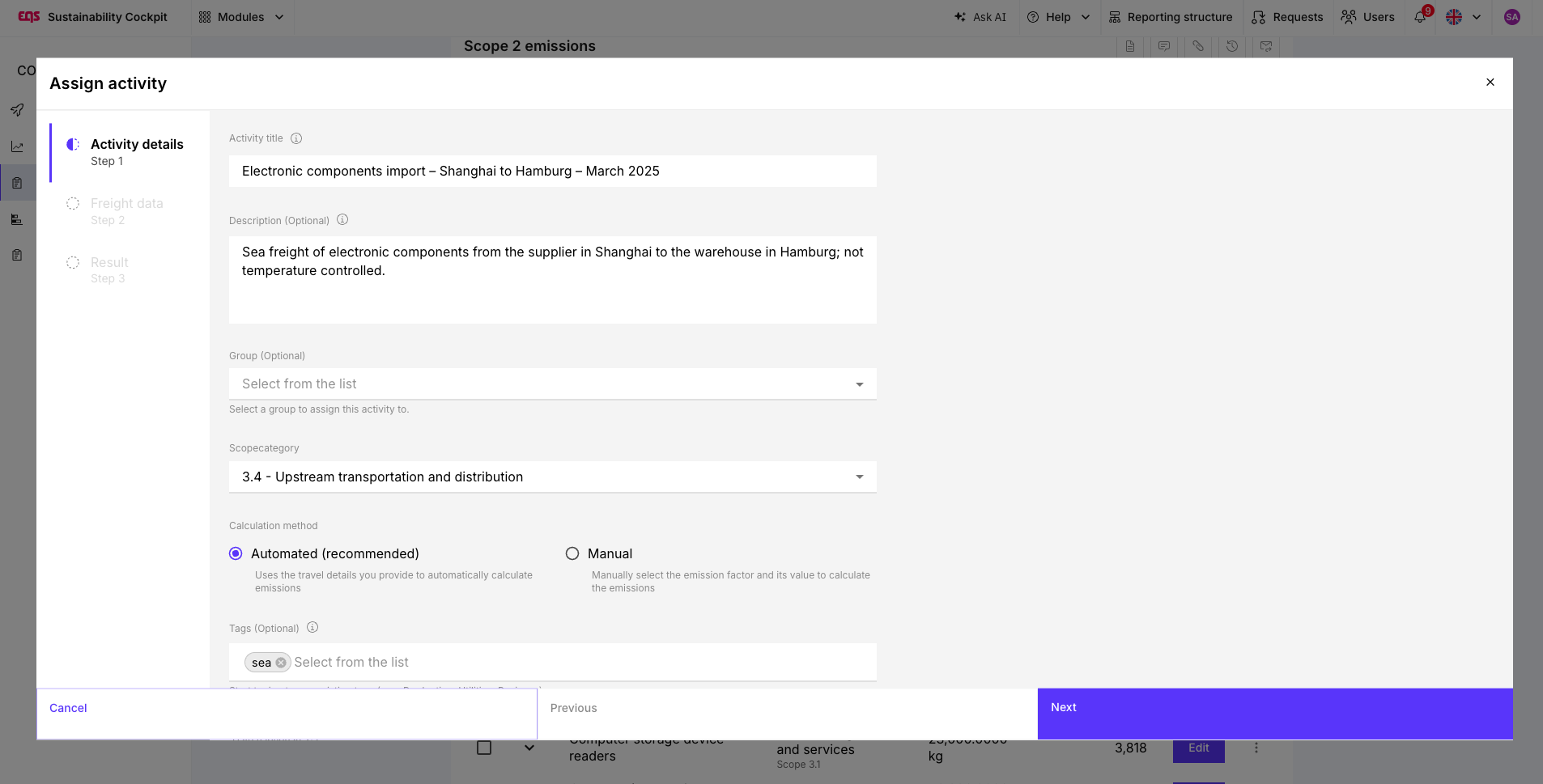
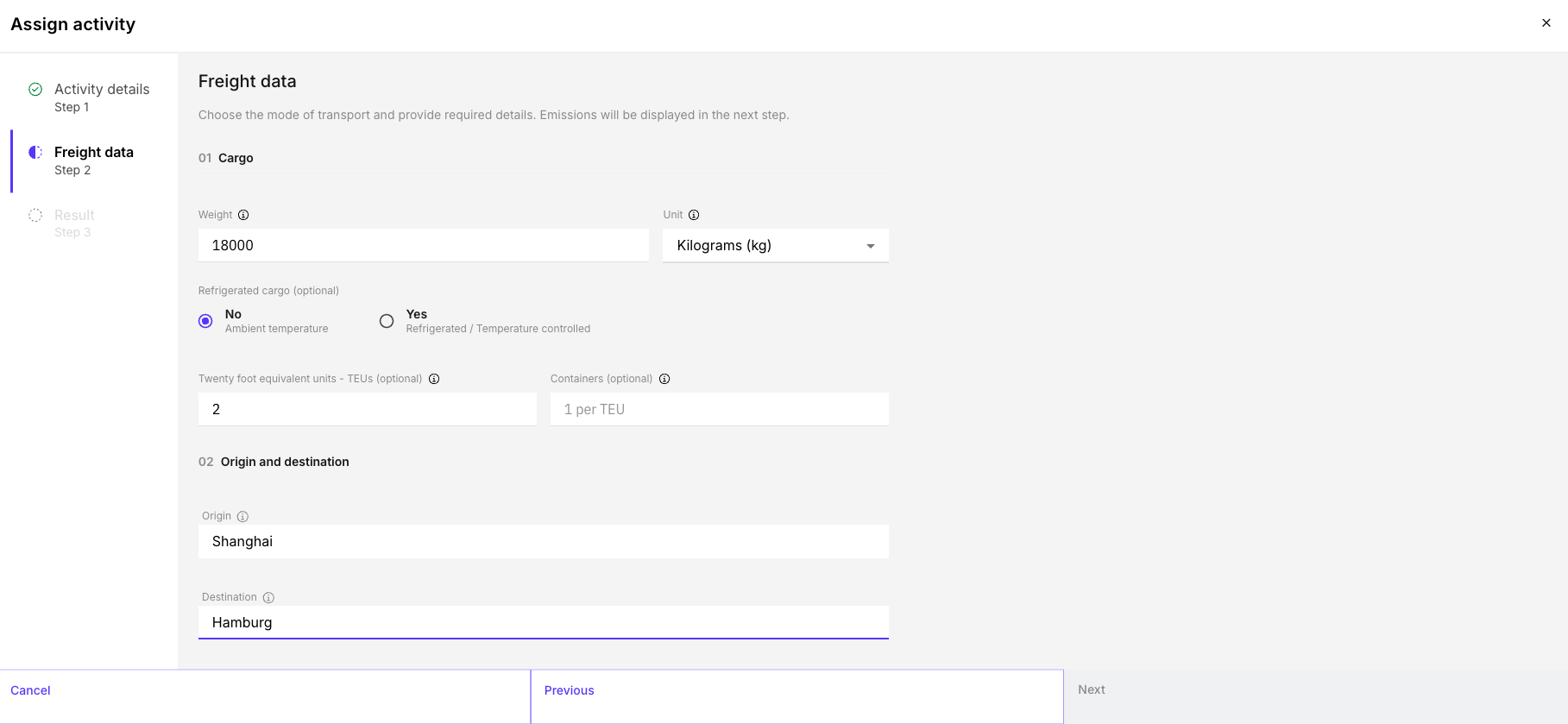
Enter the activity details and transport details.
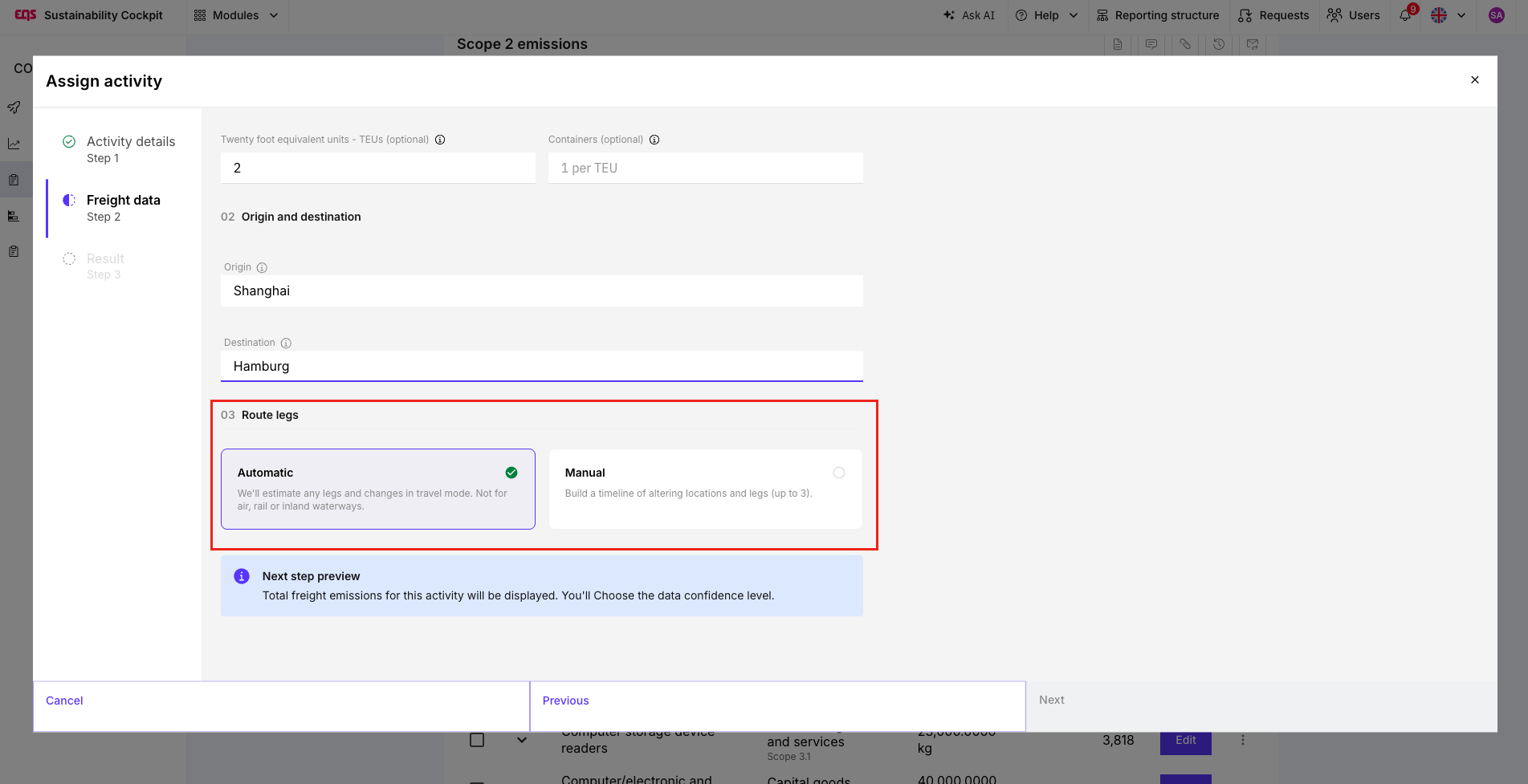
Let the tool determine the transport legs automatically or add them manually.
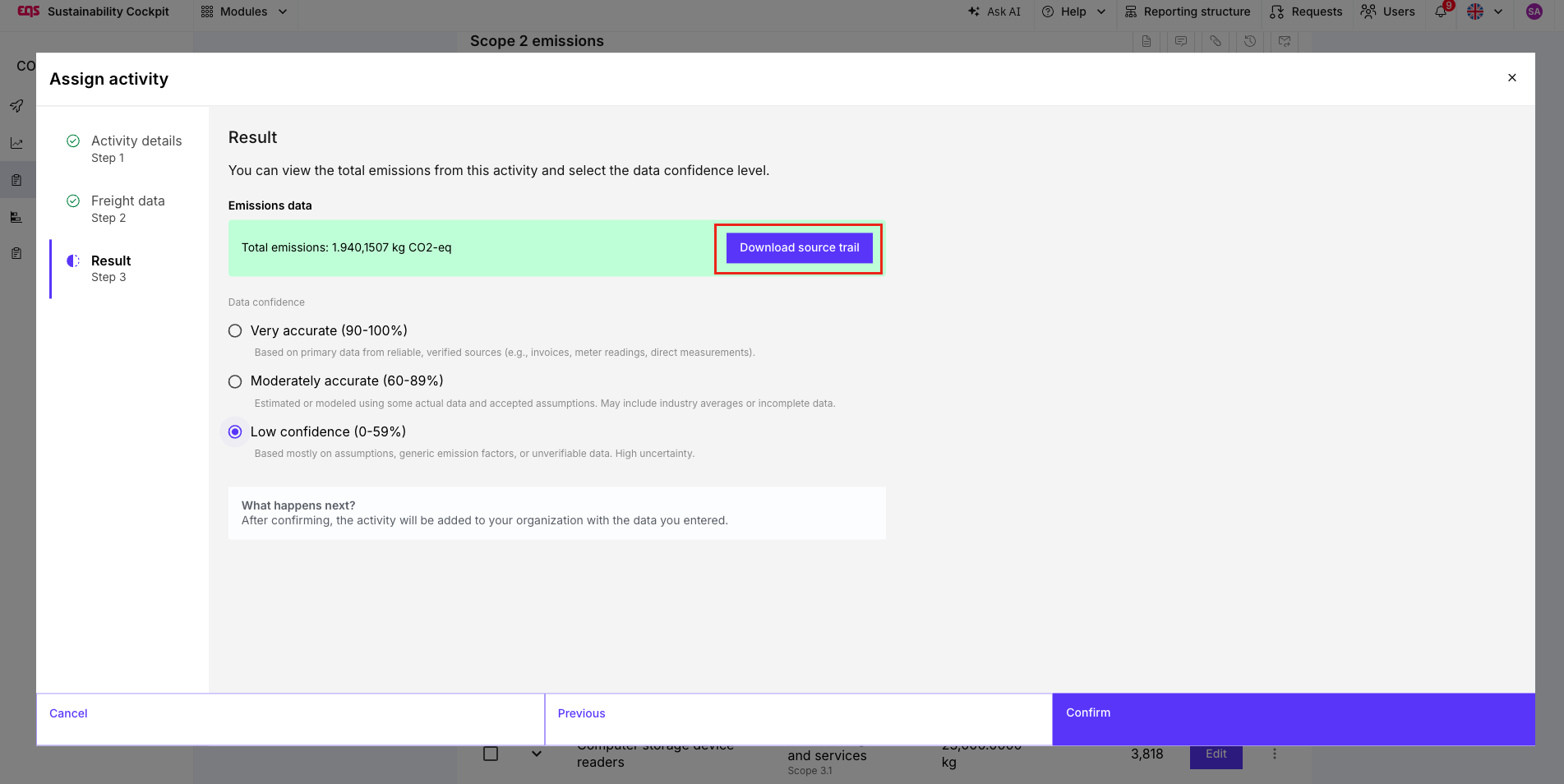
Start the calculation, review the result, and save the activity.
Required information
| Tool field | Description |
|---|---|
| Activity title | A clear, unique name for the transport activity. |
| Description | Additional context, such as the goods transported, supplier, or purpose of transport. |
| Weight | Weight of the transported goods. |
| Unit | Weight unit, for example kg or t. |
| Container or TEU | Depending on the workflow, an optional container or load-unit input. TEU means Twenty-foot Equivalent Unit; one 40-foot container equals two TEU. |
| Temperature control | Specify whether the transport is temperature controlled. |
| Origin | Starting location, for example the supplier site, port, or airport. |
| Destination | Final location, for example a plant, warehouse, port, or customer site. |
Provide locations as precisely as possible. Depending on the input field, you can use a city, site, or location code.
Define transport legs
With automatic routing, the tool uses the Origin and Destination to determine a representative distance and estimate likely transport modes for the individual legs.
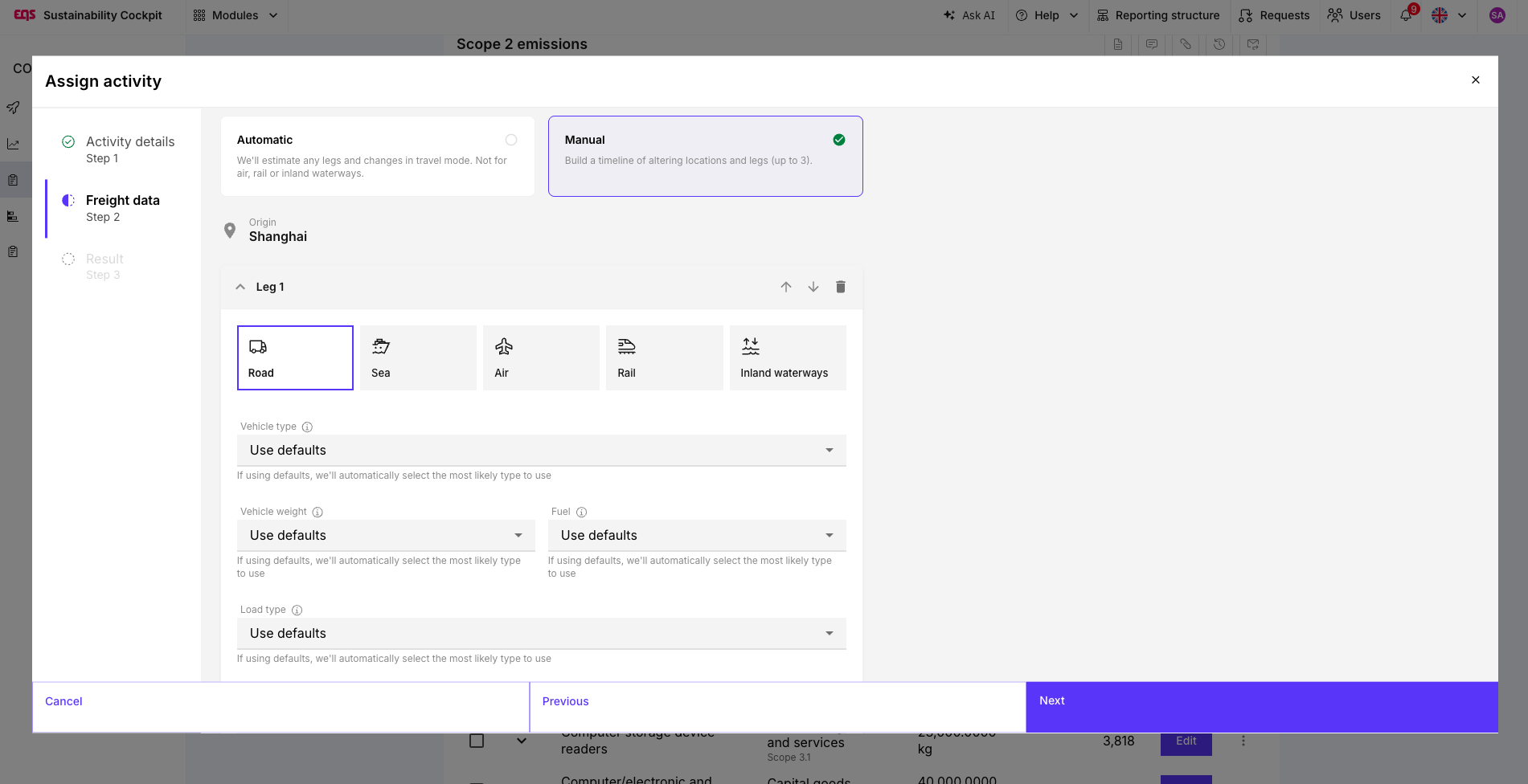
If the actual route is known, you can map the legs manually, for example:
Supplier site to port by road
Port to port by sea freight
Port to warehouse by road
Manual leg input is particularly useful when you have reliable logistics data from suppliers or freight providers.
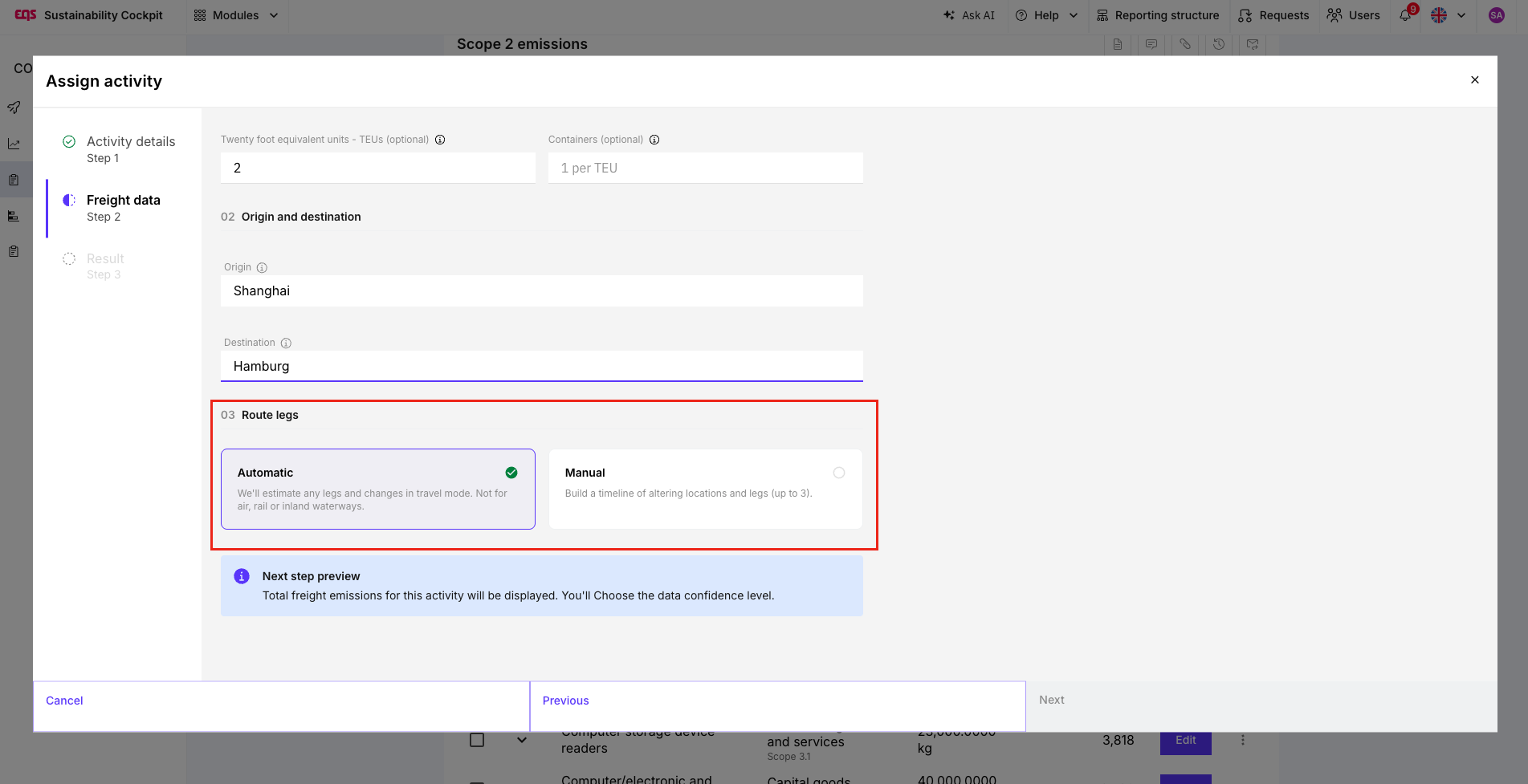
Detailed example: Sea freight in Scope 3.4
A company imports electronic components from a supplier in China to its warehouse in Hamburg. The shipment is handled by an external logistics provider and is therefore recorded in Scope 3.4.
| Tool field | Example value |
|---|---|
| Activity title | Electronic components import – Shanghai to Hamburg – March 2025 |
| Description | Sea freight of electronic components from the supplier in Shanghai to the warehouse in Hamburg; not temperature controlled. |
| Mode of transport | Sea freight |
| Weight | 18,000 |
| Unit | kg |
| Container / TEU | 1 × 40-foot container; if the workflow requests TEU: 2 TEU |
| Temperature control | Not temperature controlled |
| Origin | Shanghai, China |
| Destination | Hamburg, Germany |
| Transport legs | Determine automatically |
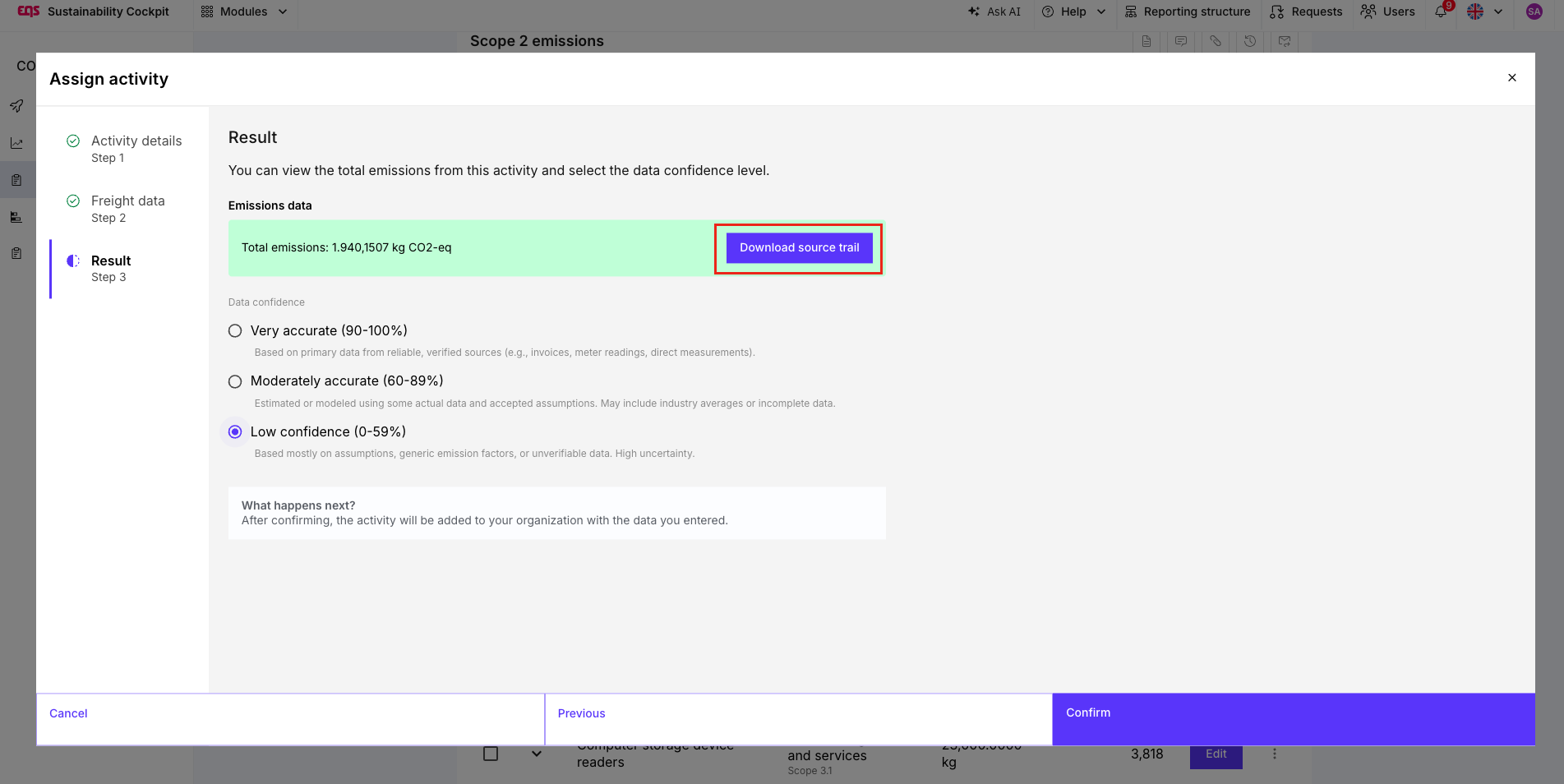
After starting the calculation, the tool determines the emissions for the transport set-up provided. Then review the weight, unit, temperature control, Origin, Destination, and calculated transport legs.
Review the result and source path
Once calculated, review the following before saving:
- Scope 3.4 or Scope 3.9 assignment;
- activity title and description;
- weight and unit;
- container, TEU, and temperature-control information;
- Origin, Destination, and transport legs;
- calculated emissions;
- the source path, where provided for the activity.
 When should I use automation?
Use automation when you know the goods quantity and the Origin and Destination, but do not have complete information about the actual route or emission factor.
Create the activity manually when you need to use an exact route, a specific emission factor, or detailed data from your logistics provider.
Important: Automatically calculated routes and emissions are estimates based on the information entered. They provide a fast calculation, but give you less control over the underlying calculation logic.
Was this article helpful?
That’s Great!
Thank you for your feedback
Sorry! We couldn't be helpful
Thank you for your feedback
Feedback sent
We appreciate your effort and will try to fix the article