
-
How to get started
- General set-up
- DMA & ESRS
- EU-Taxonomy
- CO2-Footprinting
- Supply Chain Sustainability
- VSME
-
ESRS
- ESRS - Overview
-
DMA Double Materiality
- The Double Materiality Proc...
- Double Materiality Assessme...
- Start or import your Double...
- Copying a Double Materialit...
- Transferring Data from an E...
- Add and manage stakeholders
- How to involve stakeholders...
- Which stakeholders to invol...
- Select your relevant sustai...
- Add the impacts, risks and ...
- Upload IROs into the DM pro...
- Assess each impact, risk an...
- Step-by-Step: How to Create...
- Understand your Double Mate...
- Set common definitions for ...
- Consolidation / Determinati...
- Change materiality levels o...
- Assessment Scales: Configur...
-
DMA Double Materiality - IR...
- Agriculture and Farming
- Forestry
- Construction and Engineering
- Energy Production & Uti...
- Water & Waste Services
- Casinos & Gaming
- Leisure Facilities
- Capital Markets
- Banking
- Insurance
- Health Care
- Food & Beverage Services
- Hotels & Lodging
- Aerospace & Defence
- Automobiles & Other Tra...
- Biotechnology & Pharmac...
- Building Products & Fur...
- Chemicals & Biofuels
- Construction Materials
- Electronics
- Food & Beverages
- Machinery & Equipment
- Medical Equipment & Ser...
- Metal Processing
- Oil & Gas - Midstream &...
- Pulp, Paper & Wood prod...
- Textiles, Apparels, Footwea...
- Tobacco
- Toys, Sporting Goods & ...
- Coal Operations
- Gap Analysis
-
ESRS Data Collection & ...
- Create a new ESRS report
- Include Your Double Materia...
- Copy data from an existing ...
- Copy data from an existing ...
- Importing CO2 Data into an ...
- ESRS report, step 1: determ...
- ESRS report, step 1 (1): ph...
- ESRS report, step 2: prepar...
- ESRS report, step 2 (1): Da...
- ESRS report, step 2 (2): Di...
- ESRS report, step 3: collec...
- ESRS report, step 3 (1): Un...
- ESRS report, step 3 (1): Un...
- ESRS report, step 4: writin...
- Mapping of Sustainability T...
- Download datapoints
- Consolidating ESRS Reports
- Audits: Review and Compare ...
- Analysis & Dashboard
- Guide to Handling Requests ...
-
EU Taxonomy
- Data collection
- Eligibility assessment
- Minimum safeguards
- Alignment assessment
- Adding financial data for E...
- Accounting standards
- Analytics & Reporting
-
CO2 Footprint
- CO2 - Overview
- Data Collection
- Activities
-
Scopes
- Scope 1 - Emissions from so...
- Scope 2 - Emissions that re...
- (2) Scope 2-Emissions: Mark...
- Scope 3.1 - Emissions assoc...
- Scope 3.2 - Emissions assoc...
- Scope 3.3 - Emissions resul...
- Scope 3.4 - Emissions assoc...
- Scope 3.5 - Emissions assoc...
- Scope 3.6 - Business Travel
- Scope 3.7 - Employee commuting
- Scope 3.8 - Emissions resul...
- Scope 3.9 - Emissions gener...
- Scope 3.10 - Emissions gene...
- Scope 3.11 - Emissions gene...
- Scope 3.12 - Emissions gene...
- Scope 3.13 - missions resul...
- Scope 3.14 - Franchises
- Scope 3.15 - Investments
- How to assign scopes (in th...
- Scope 3.4 and Scope 3.9: Ca...
- Scope 3 Reporting: Process,...
- Emission factors
- Old flow
-
Supply chain risk
- Module settings
- Supplier management
- Risk assessment
- Grievance mechanism
- Incidents
- Reporting
- Information for suppliers
- Guide to Handling Requests ...
-
VSME
-
VSME Data Collection & ...
- VSME Module – Roles & P...
- Create a new VSME report
- Importing CO2 Data into a V...
- VSME - Basic Module
- VSME - Comprehensive Module
- VSME report, step 1: Determ...
- VSME report, step 2: Prepar...
- VSME report, step 2 (1): Da...
- VSME report, step 2 (2): Di...
- VSME report, step 2 (3): Us...
- VSME report, step 2 (4): Co...
- VSME report, step 3: collec...
- VSME report, step 4: writin...
- Reusing ESRS Data for Your ...
- Sustainability Profile
-
VSME Data Collection & ...
-
General settings and config...
- Account Settings
- Log-in process
- General User Management
- Data requests, review and v...
- Reporting Structure
-
Product & Regulatory up...
-
Software Updates
- EQS Software updates: 4. Se...
- EQS Software Updates: 12. J...
- EQS Software Updates: 13. M...
- EQS Software Updates: 21. A...
- Simplified ESRS Draft in th...
- EQS Software Updates: 25. M...
- EQS Software Updates: 12. M...
- EQS Software Updates 6. Mar...
- EQS-Software Updates: 24. F...
- EQS-Software Updates: 8. Ja...
- Introducing ESRS Consolidat...
- EQS-Software Updates: 10. N...
- EQS-Software Updates: 24. O...
- EQS-Software Updates: 22. S...
- Updates to the VSME Module:...
- CO₂ Workflow Update
-
Regulatory Updates
- EQS Regulatory Update: 19. ...
- EQS Regulatory Updates: 17....
- EQS Regulatory Updates: 25....
- EQS-Regulatory Updates 13. ...
- EQS-Regulatory Updates 15. ...
- EQS Regulatory Updates 24. ...
- EQS Regulatory Updates 10. ...
- EQS Regulatory Updates 13. ...
- EQS-Regulatory Updates 23. ...
- EQS-Regulatory Updates 28. ...
- EQS-Regulatory Updates 8. J...
- Sustainability Knowledge
-
Software Updates
-
Reduction Planner
- Reduction Planner
Adding Emission Activities: Manually, from Files, or Automatically
Modified on Wed, 16 Sep at 5:43 PM
You can add emission activities to an organisational unit in three ways:
Manually, when you want to select activity data and emission factors yourself.
From files, when you want to import multiple activities using a template.
Automatically, when a supported calculation workflow is available for the selected Scope.
First, open the relevant organisational unit and the Scope or Subscope you want to report on. Then select Add activity.
Choose an input method
| Input method | Best for |
|---|---|
| Manual | Quantity-, consumption-, or supplier-specific data, and user-selected emission factors. |
| From files | Large activity volumes, recurring imports, or data from purchasing, travel, or ERP systems. |
| Automatic | Quick calculations based on the required inputs in supported Scope 3 categories. |
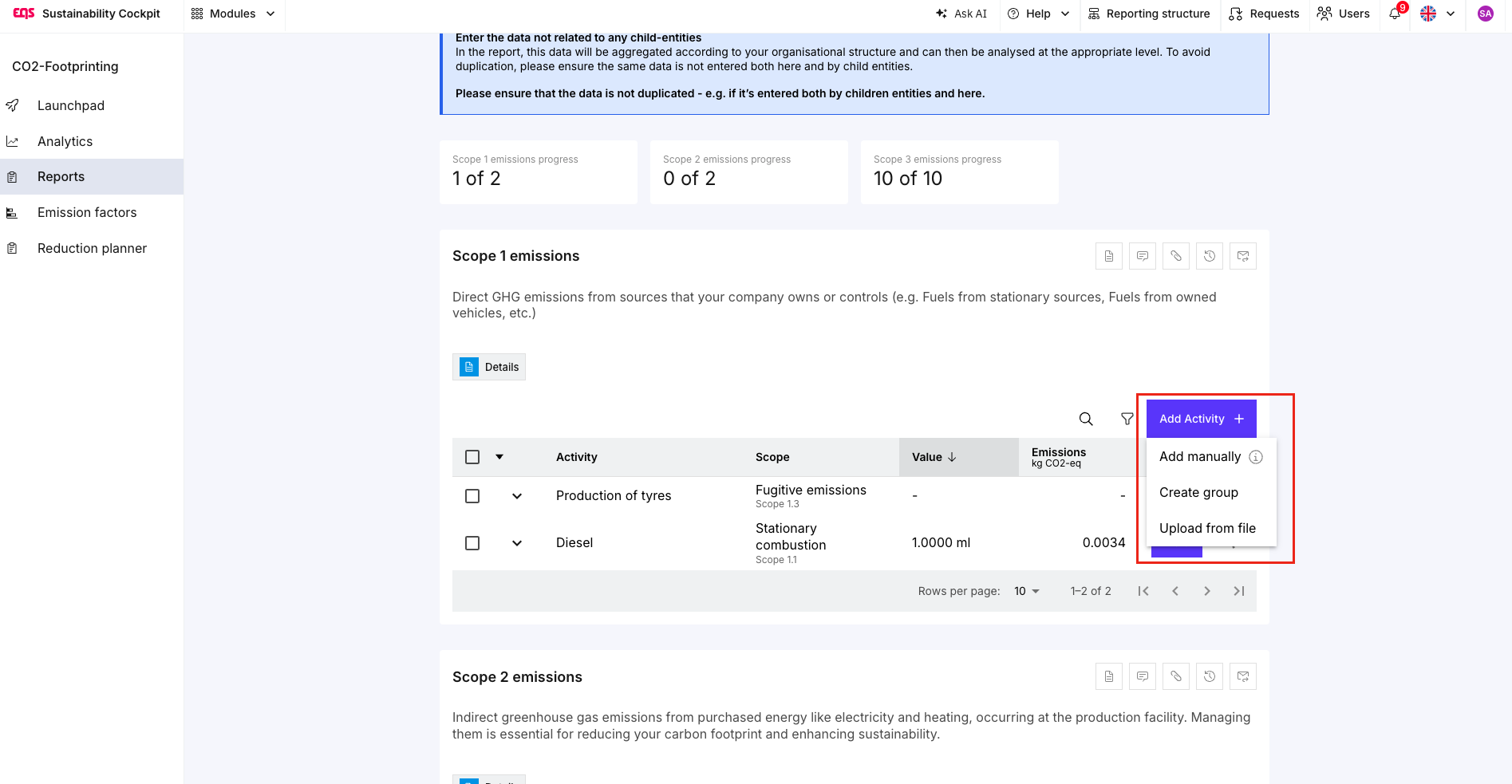
Add an activity manually
Select Manual.
Enter a clear activity description.
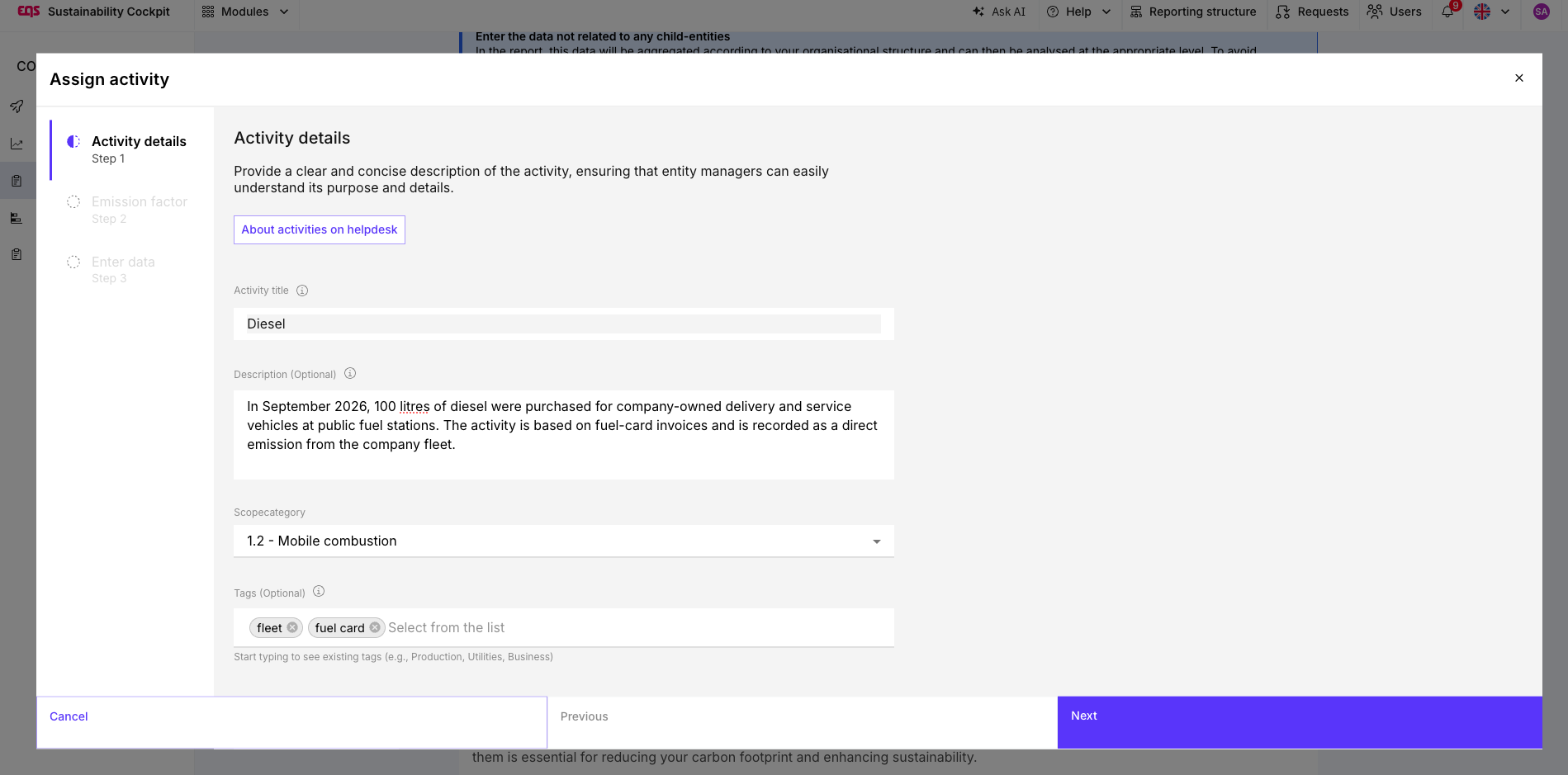
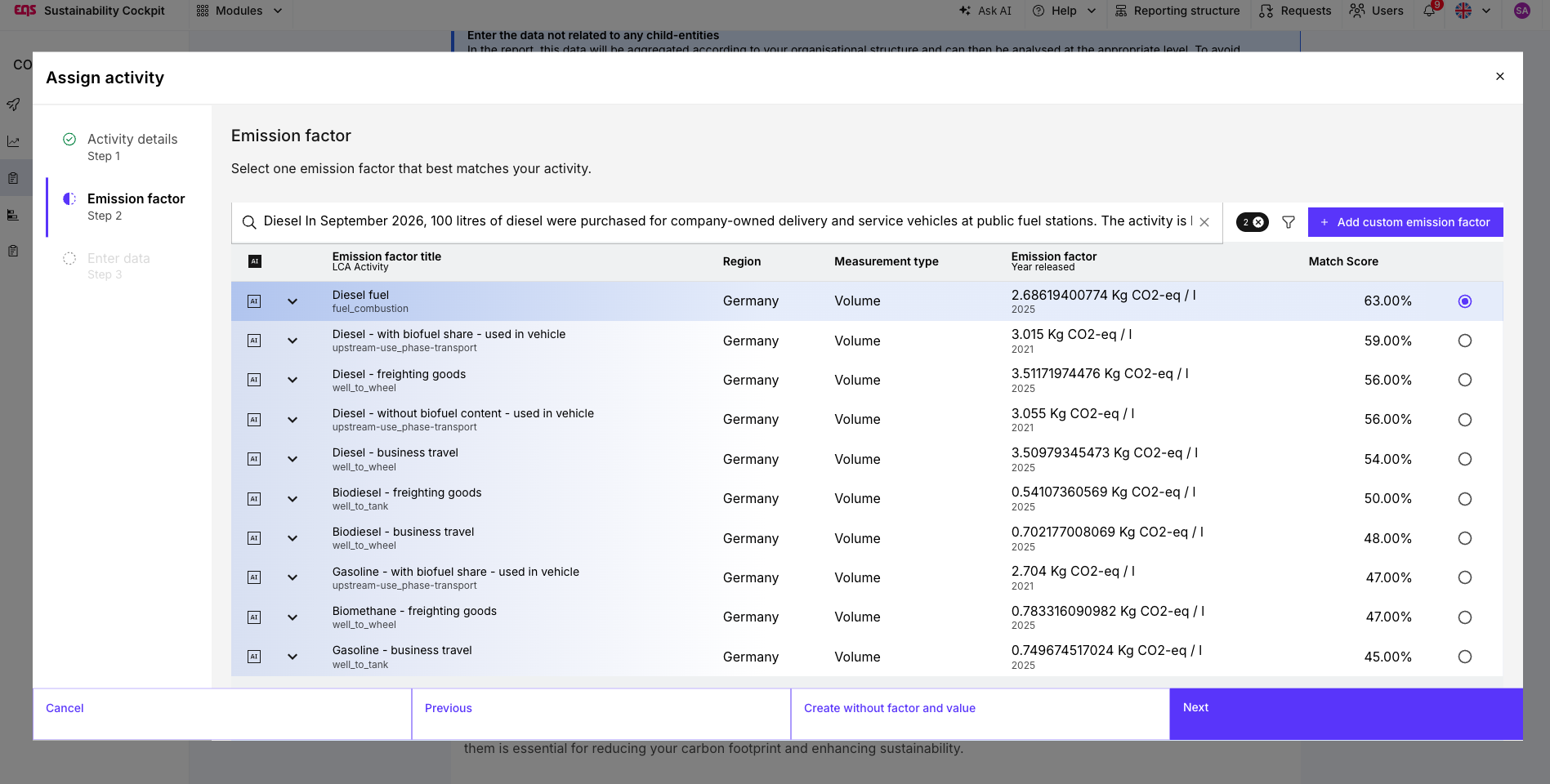
Select an appropriate emission factor from the database or use a custom emission factor.
Enter the consumption or activity value in the relevant unit.
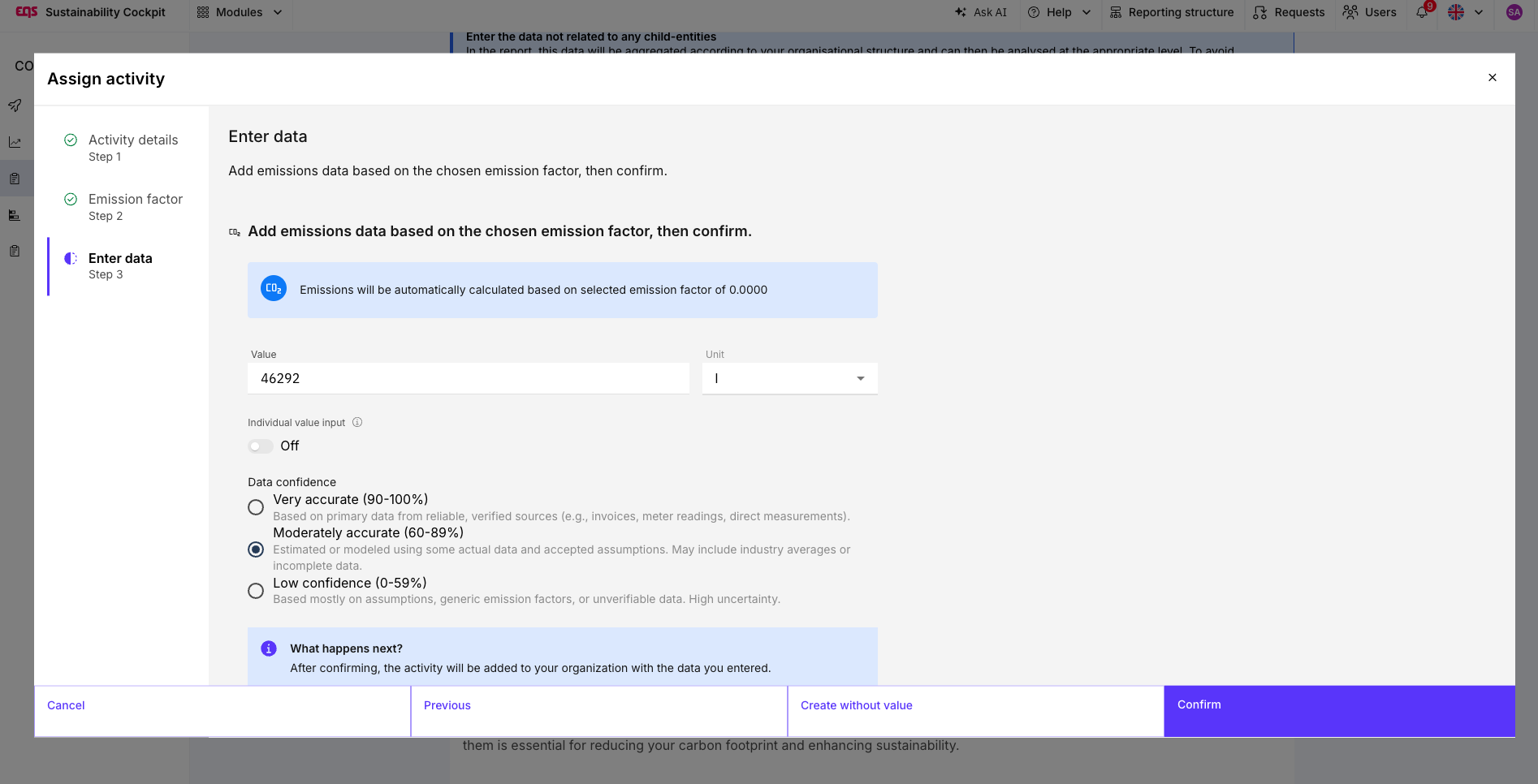
You can also create an activity before an emission factor or consumption value is available—for example, to prepare data collection. Add the missing information later before analysing the calculated emissions.
Tip: Use the manual method when you have a supplier-specific factor or want full control over the calculation basis.
Individual Value Input for combined units
If an emission factor uses a combined measurement unit, such as weight × distance, you can enable Individual Value Input. This lets you record multiple component values within one activity, for example individual transport legs.
All component values use the same emission factor. The tool adds them together and calculates the activity total. Find more information on individual value input in this article.
Add activities from files
Use From files to import multiple activities with a template.
Download the appropriate template.
Enter the activities in the designated columns.
Check mandatory fields, units, and organisational-unit assignments.
Upload the completed file.
Review the imported activities and resolve any errors or warnings.
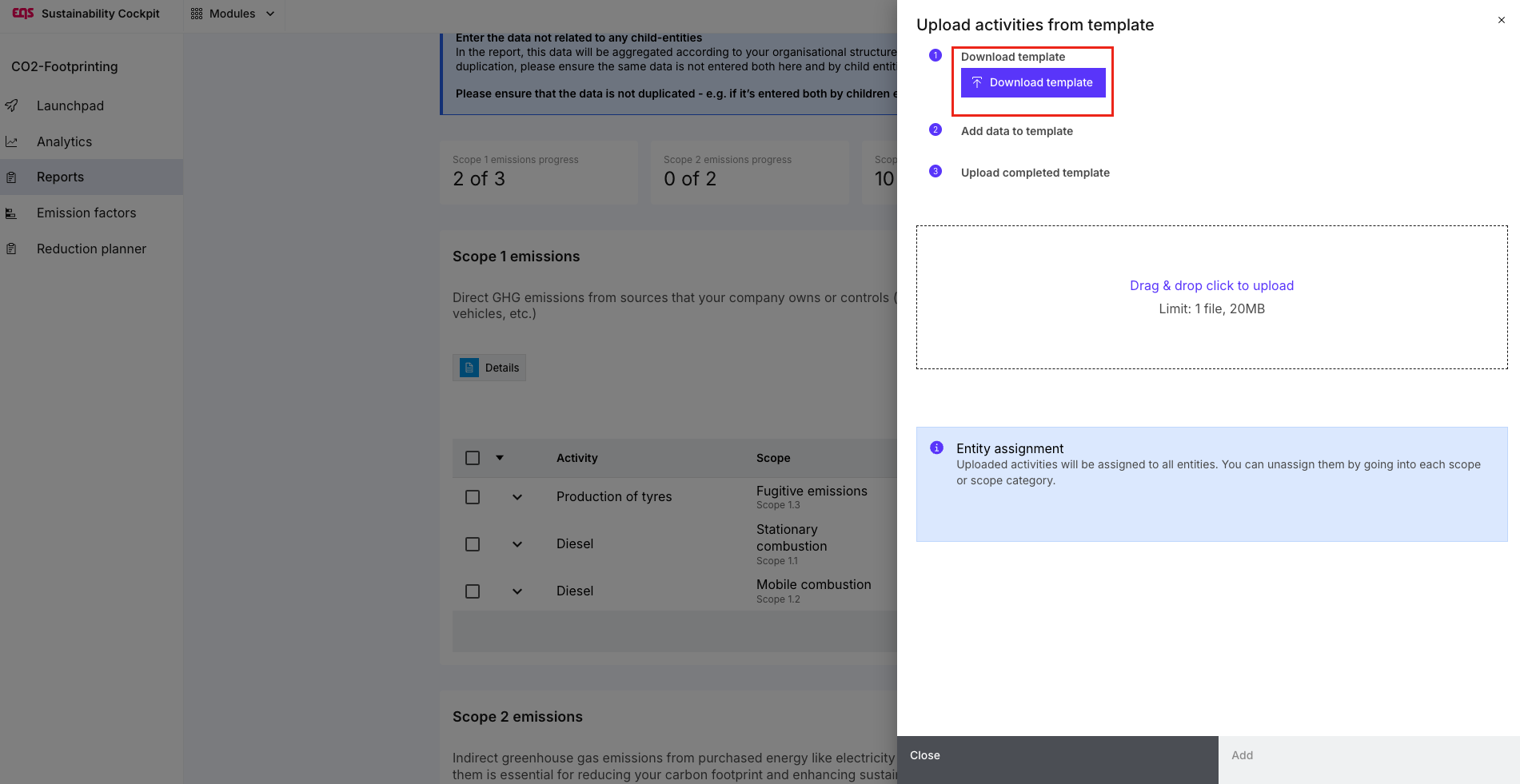
Global Upload is particularly useful when preparing activities for multiple organisational units in one file. Always use the template intended for the relevant Scope and workflow. Required fields depend on the calculation method.
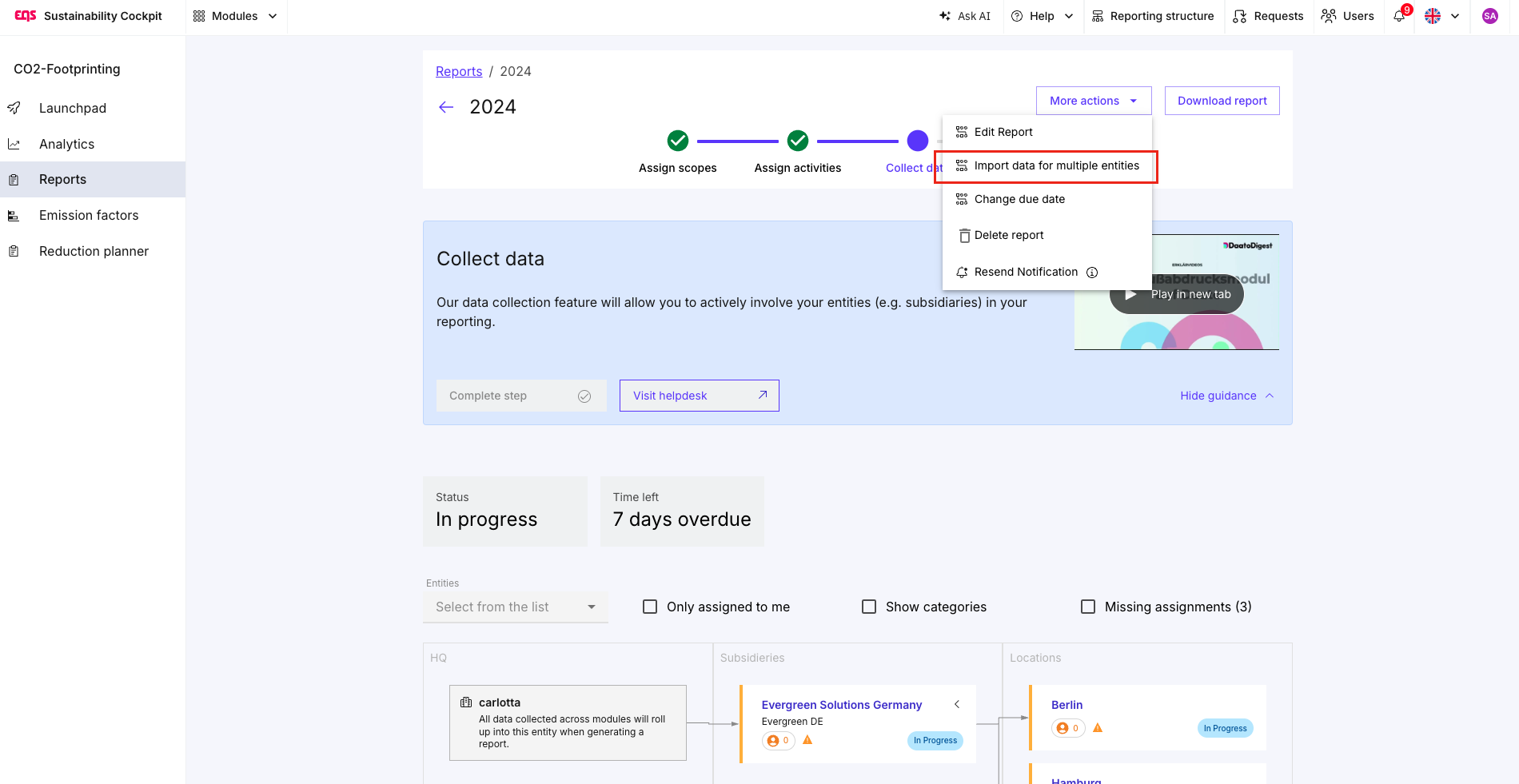
Add an activity automatically
Automatic input is available for the following Scope 3 categories:
Scope 3.1 – Purchased goods and services (more information here)
Scope 3.4 – Upstream transportation and distribution (more information here)
Scope 3.6 – Business travel (more information here)
Scope 3.9 – Downstream transportation and distribution (more information here)
The required information and calculation logic vary by Scope:
| Scope | Examples of required information |
|---|---|
| 3.1 | Product or service description, spend amount, country or region, and reporting year |
| 3.4 / 3.9 | Transport mode, transported quantity, origin and destination, and where applicable temperature control or transport legs |
| 3.6 | Travel data, such as air, rail, or car travel and hotel stays |
For Scope 3.1, the automatic calculation is spend-based. Transport and business-travel activities use their respective, specific workflows.
Important: Automatic calculations provide a result quickly but give you less control over the underlying calculation. If you need to use a different emission factor or calculation approach, create the activity manually.
Grouping or Individual Value Input?
Use Grouping when several independent activities should be organised and analysed together. Each activity in a group can use its own emission factor and activity data.
Use Individual Value Input when several component values belong to one activity and should be calculated with the same emission factor.
For more information, see Grouping Emission Activities Within a Scope.
Check after saving
For every activity, verify:
organisational unit, Scope, and Subscope;
activity description and reporting year;
entered values and units;
emission factor or source path of the automatic calculation;
calculated emissions.
Consistent naming and traceable source data make emissions easier to review and update later.
Was this article helpful?
That’s Great!
Thank you for your feedback
Sorry! We couldn't be helpful
Thank you for your feedback
Feedback sent
We appreciate your effort and will try to fix the article