
The VSME module supports companies in the structured collection and reporting of sustainability-related information in line with the requirements of the Voluntary reporting standard for SMEs (VSME). To ensure clear responsibilities and efficient workflows, the module offers several user roles – VSME Module Manager, VSME Entity Manager, VSME Entity Approver, and VSME Reporter. Each role comes with specific permissions and responsibilities designed to ensure the quality, traceability, and consistency of the data. The following overview outlines how each role is integrated into the reporting process and which functionalities are available to them.
| VSME Module Manager | The VSME Module Manager holds the highest level of permissions within the module — regardless of entities. They can manage all reports, assessments, and settings, and assign users. However, intervening in the aggregation or approval of data is only possible if they are also assigned the corresponding entity-level roles (e.g., VSME Entity Manager or VSME Entity Approver). |
| VSME Entity Manager | |
| VSME Entity Approver | |
| VSME Reporter |
In the following, you will find a detailed overview of the roles and their respective permissions within the VSME module. The breakdown outlines which actions are available to each user type and where their limitations lie. This transparency helps clarify who is responsible for which tasks within the module. The overview supports a better understanding of responsibilities, enables clear role assignments, and promotes efficient teamwork.
VSME Module Manager:
| Module / Page | User can | User can't |
| Reporting Structure | • List all entities • Manage all entities • View user assignments for VSME modules for all entities • Manage user assignments for VSME modules for all entities • Each position for VSME modules for all entities is assigned | • View user assignments for other modules • Be assigned to a position for other modules |
| Requests | • List all requests for the VSME module • List and access your sent and received requests
• Access all non-your requests for the VSME module • View all data points with responses | • List and access requests from other modules |
| VSME module | • Access to the Red Thread • Access to Analytics
• Access to Reporting
• Consolidate reports • Access settings
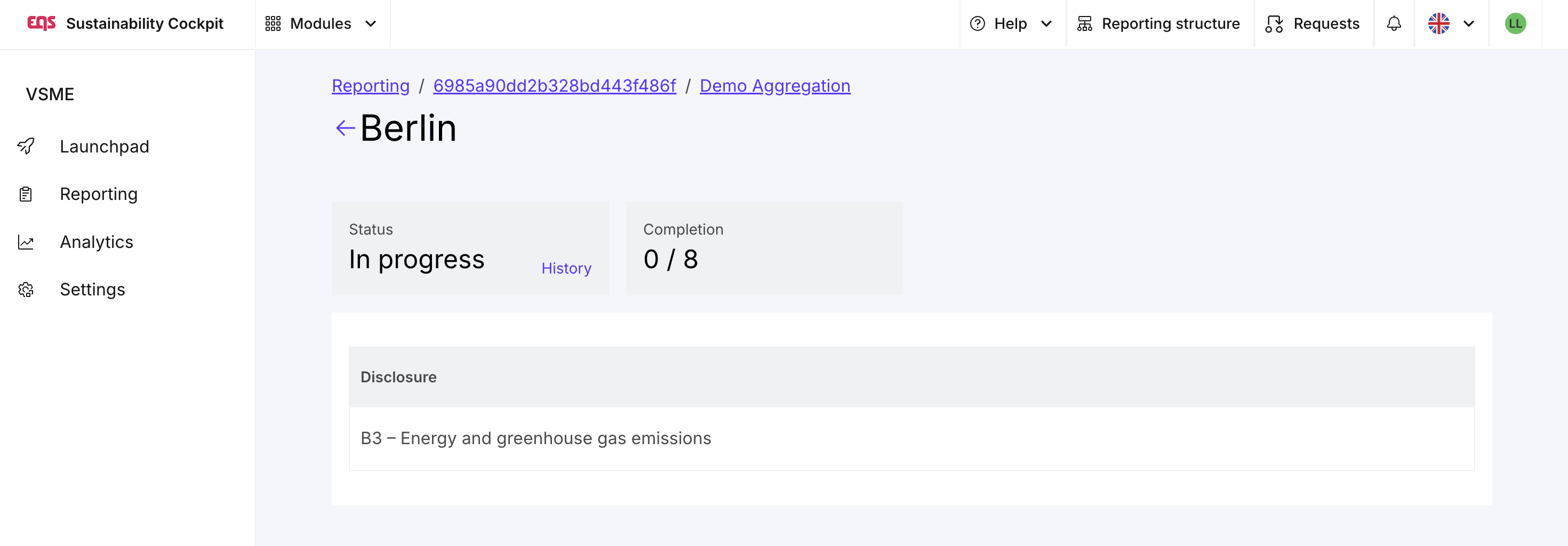
| • Change, submit, or reopen data collection for an entity in the aggregation unless they are listed as the entity manager for VSME for that entity • Approve data for an entity in the aggregation unless they are listed as the VSME approver for that entity |
VSME module managers can only populate data in the aggregation of specific units if they are also assigned to that unit as a manager for VSME.

The assignment of disclosure requirements in step 2 is only possible for users with the roles Admin, Module Manager or Reporter.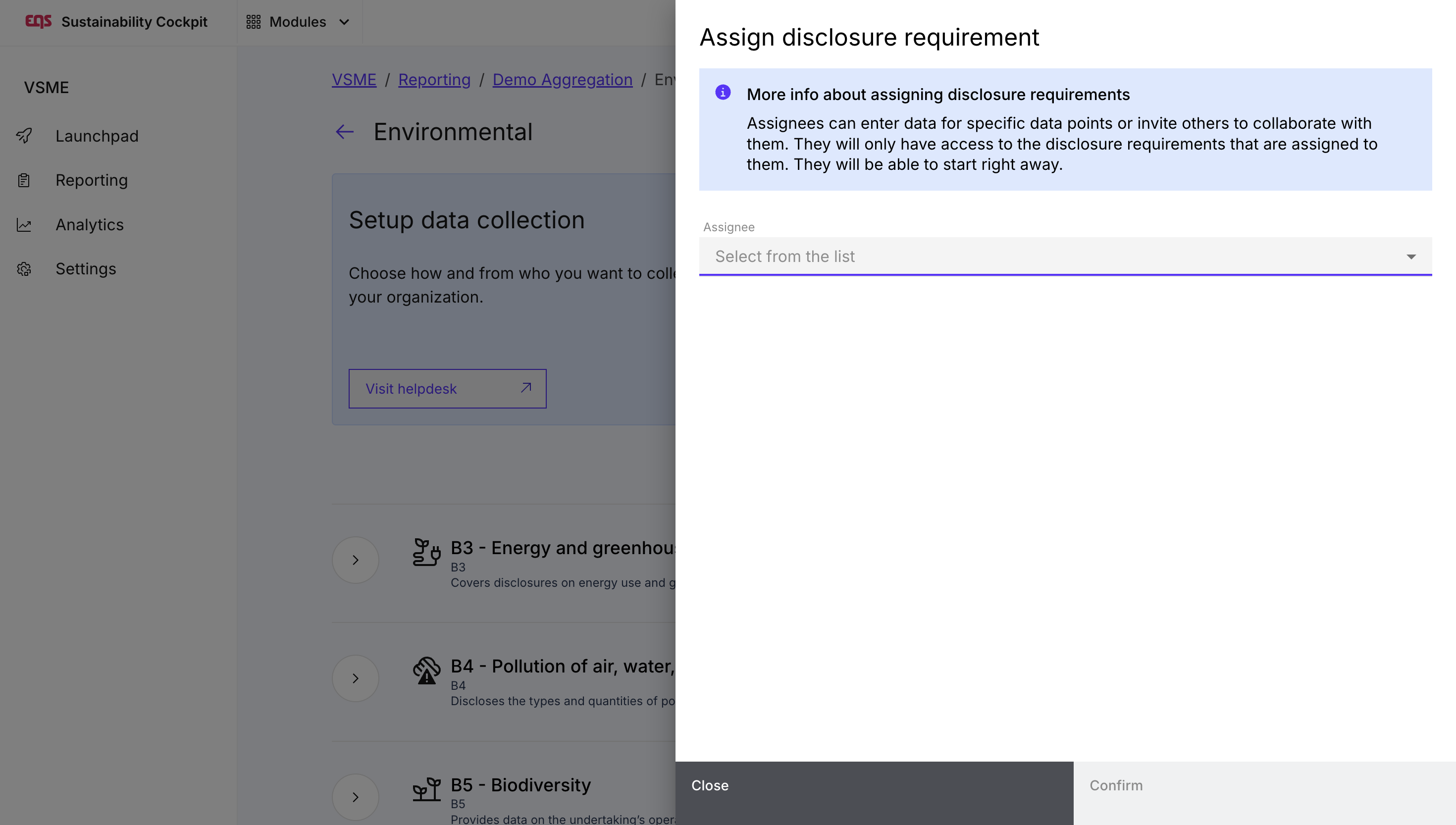
Besides Admins, only VSME Module Manager can complete and reopen Steps in the workflow.VSME Entity Manager:
| Module / Page | User can | User can't |
| Reporting Structure | • List all entities and view user assignments for the VSME module to which the user is assigned, as well as their predecessors and successors • Manage user assignments for the VSME module for all entities to which the user is assigned as a report manager, as well as their successors • Be assigned to the unit manager position in the VSME module for each entity | • View entities to which they are not assigned, unless they are predecessors or successors of those entities • View user assignments for other modules and be assigned to any position • Be assigned to the Approver position for the VSME module |
| Requests | • List and access your sent and received requests • Access all your received requests
• Access all your sent requests
| • List or access not own requests |
| VSME module | • Access reports
| • Access to the Launchpad • Access to Analytics •List reports that do not contain an entity to which the user is assigned as the Entity Manager • Manage reports • Access to Step 1 and Step 3 of the reports • Access data points that are part of a manual data collection in Step 2 • View entities in the aggregation to which the user is not assigned, unless they are predecessors or successors of those entities • Mark the aggregation as complete in Step 2 • Modify or submit entity data in the aggregation unless the Entity Manager position for VSME is assigned for that entity • Reopen data collection for an entity in the aggregation unless the Entity Manager position for VSME is assigned for that entity or its parent entity • Approve data for an entity in the aggregation • Consolidate reports • Access to Settings and Sustainability Profile |
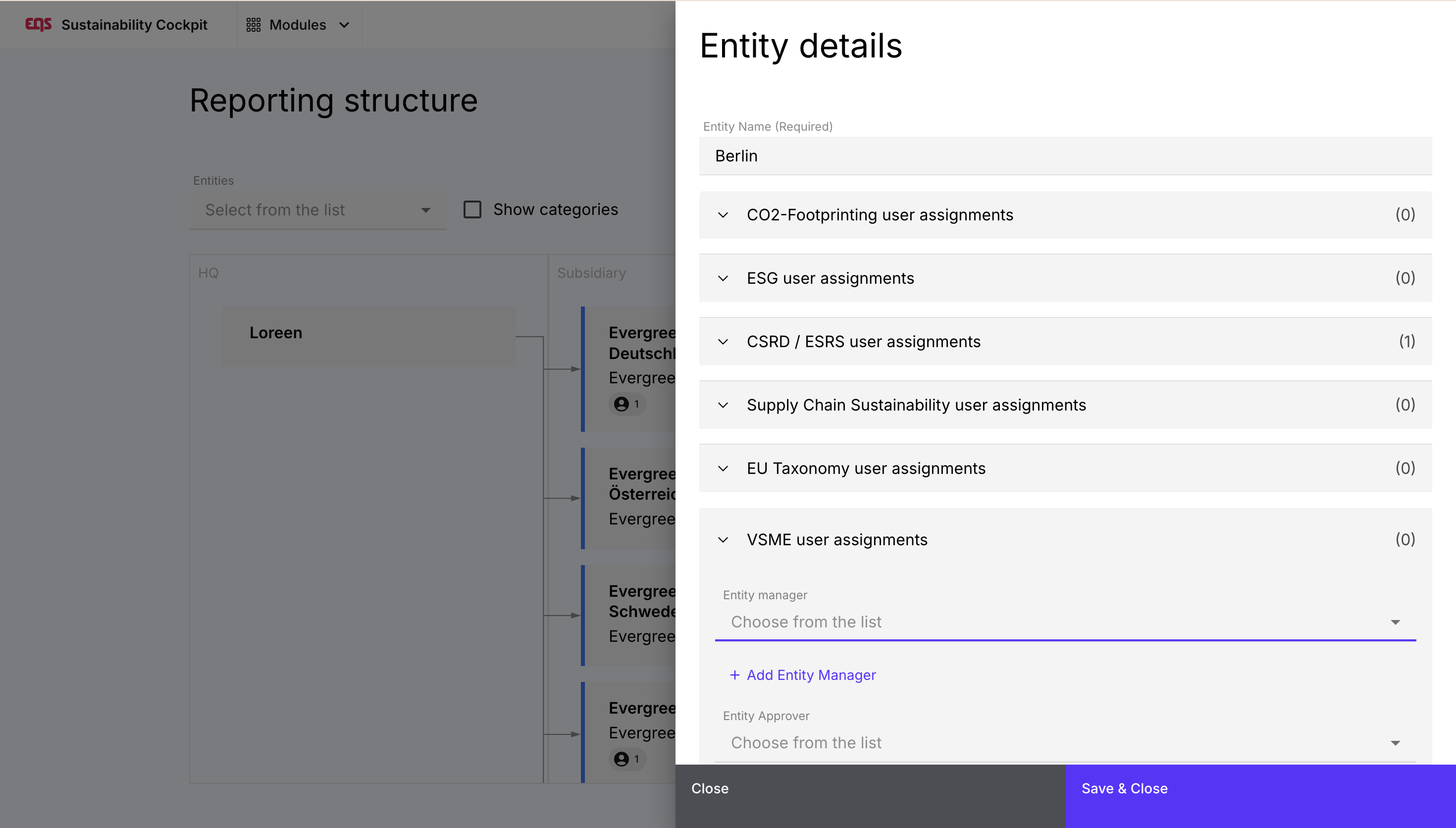
Make sure to assign your entity manager to their correct entity in the organizational structure before you start. They will only get the right permissions for their entity after this step.Entity Manager can only see the reports, their entity is assigned to.VSME Entity Approver:
| Module / Page | User can | User can't |
| Reporting Structure | • List all entities to which the user is assigned, as well as their predecessors and successors • Display user assignments for the VSME module for entities to which the user is assigned as an approver, as well as their predecessors and successors • Be assigned to an approver position in the VSME module for each entity | • View entities to which they are not assigned, unless they are predecessors or successors of those entities • View user assignments for other modules • Manage any entity • Manage user assignments • Be assigned to any position for other modules • Be assigned to the position of unit manager for the VSME module |
| Requests | • List your sent and received request • Access all your received requests
• Access all your sent requests
Request data correction for the response | • List or access not own requests |
| VSME module | • Access reports
| • Access to the Launchpad • Access to Analytics • List reports that do not contain an entity to which the user is assigned as a sharer • Manage reports • Access to Step 1 and Step 3 of reports • Access to data points that are part of a manual data collection in Step 2 • View entities in the aggregation to which the user is not assigned, unless they are predecessors or successors of those entities • Mark the aggregation as complete in Step 2 • Modify or transfer entity data in the aggregation • Request approval for an entity • Reopen data collection for an entity if the user is not assigned as a sharer • Approve data for an entity in the aggregation if the user is not assigned as a sharer • Consolidate reports • Access to Settings and Sustainability Profile |
VSME Reporter;
| Module / Page | User can | User can't |
| Reporting Structure | • Access to the organizational structure • Assignment to any position for any module of any entity | |
| Requests | • List your sent and received requests • Access all your received requests
• Access all your sent requests
| • List or access not own requests |
| VSME module | • Access to reports
| • Access to the Launchpad • Access to Analytics • Manage reports in Reporting • List reports in Reporting that do not contain information to which the user is assigned • Access to Step 1 of Reports • Access to Aggregation in Step 2 of Reports • List information to which the user is not assigned in Steps 2 and 3 of Reports • Export reports in Step 4 • Consolidate reports • Access to Settings and Sustainability Profile |
Note: In addition to these roles, the VSME module also includes entity-specific positions that are assigned in the organizational structure under "VSME User Assignments." The positions "Unit Manager" and "Approver" can be assigned to users for individual units. Certain permissions only apply if a user not only has the corresponding role but also holds the corresponding position in the unit in which the corresponding action is to be performed. Therefore, it is important to carefully assign the corresponding positions in the organizational structure in addition to correctly assigning roles.
Was this article helpful?
That’s Great!
Thank you for your feedback
Sorry! We couldn't be helpful
Thank you for your feedback
Feedback sent
We appreciate your effort and will try to fix the article