
Since the ESRS does not prescribe a specific assessment scale, many organisations use their own methodologies to assess Impacts, Risks and Opportunities (IROs) and Sustainability Matters.
The EQS Sustainability Cockpit therefore allows you to configure a custom assessment scale that matches your organisation's internal approach. This enables you to continue using an existing assessment methodology without translating results into a different scoring system. Once configured, your custom scale is used consistently throughout the entire DMA workflow while the Sustainability Cockpit's underlying assessment logic remains unchanged.
Why use a custom assessment scale?
By default, the EQS Sustainability Cockpit uses the following five-level assessment scale:
Very low
Low
Medium
High
Very high
If your organisation uses a different terminology or a different number of assessment levels, you can replace the default scale with your own.
Configure a custom assessment scale
To create your own assessment scale:
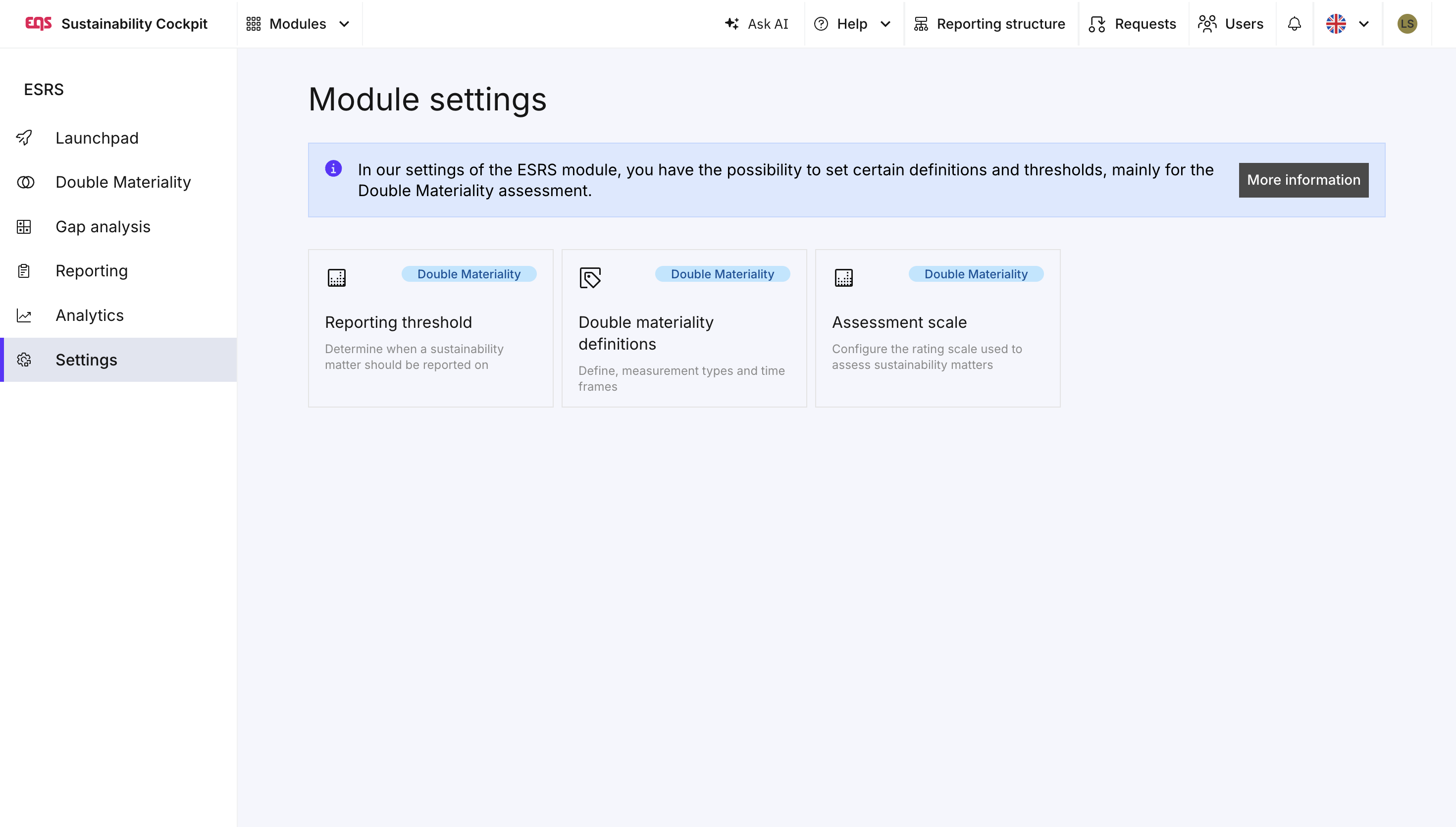
Open Settings.
Navigate to Assessment scale.
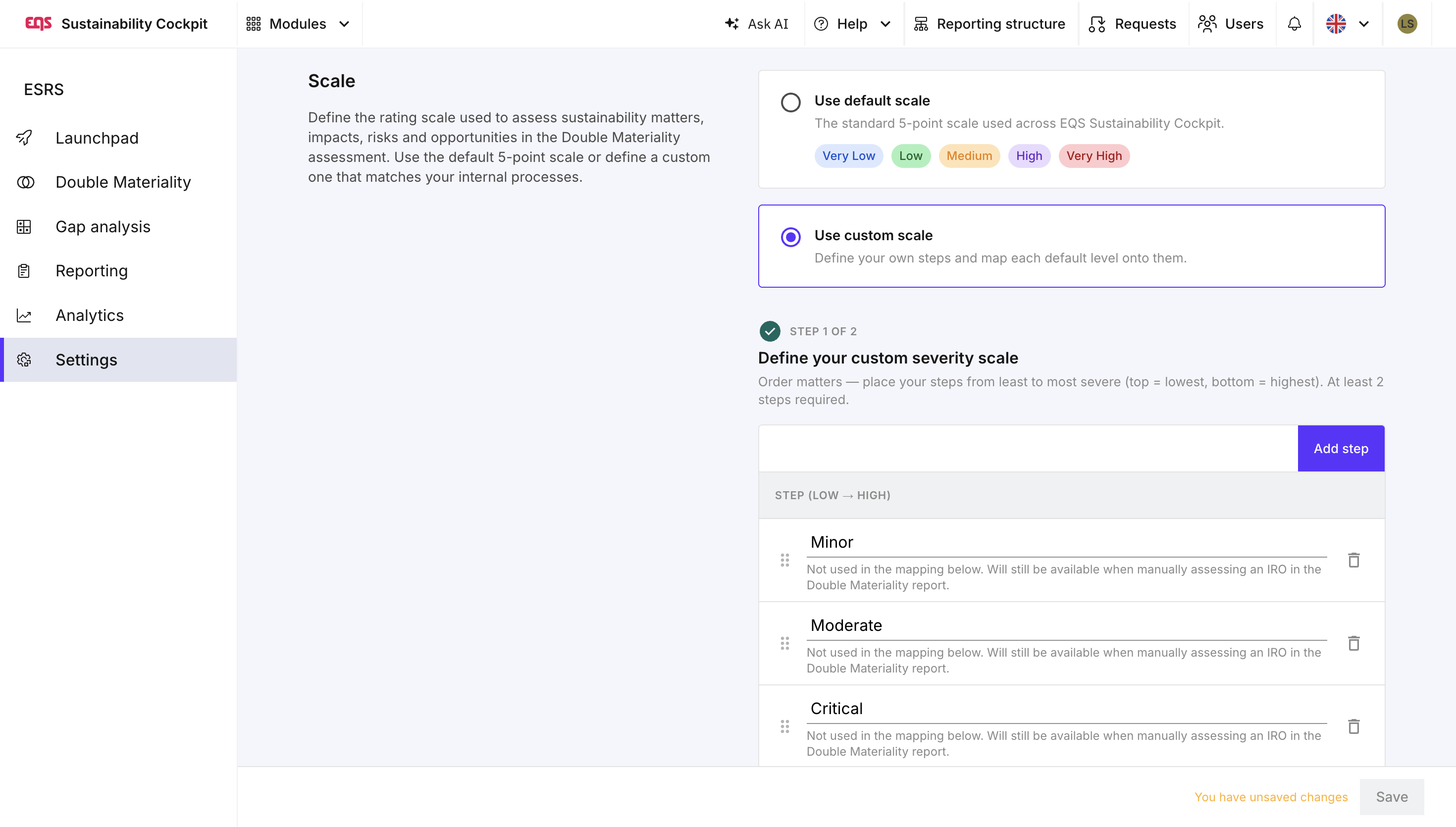
Select Use custom scale.
You can now define your own assessment steps.
Create your scale
Add as many assessment levels as required.
For each step you can:
define the name of each assessment level
delete steps
add additional steps
Note: A custom scale must contain at least two assessment levels.
Map your custom scale to EQS's default scale
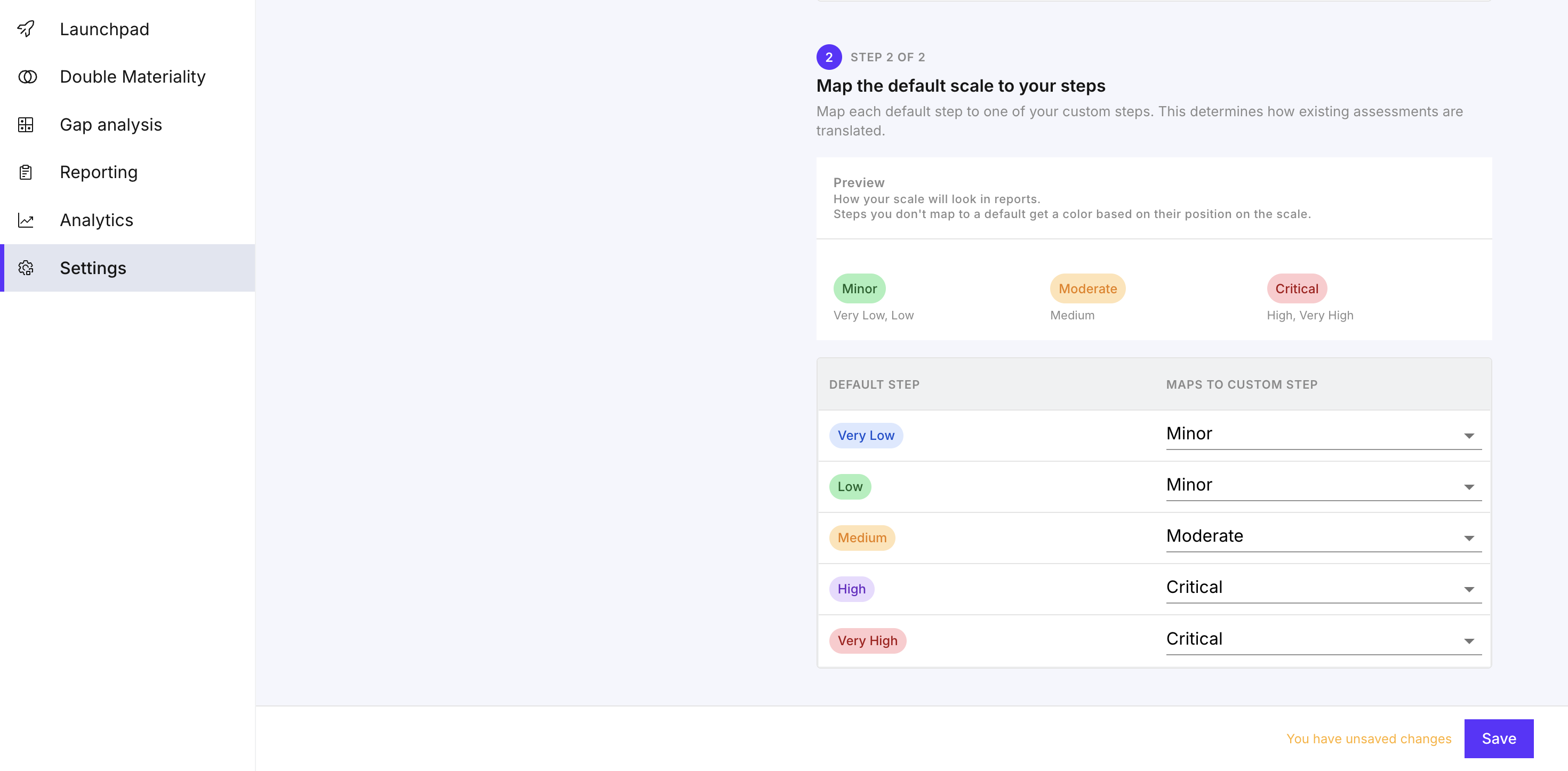
After creating your custom scale, you need to map it to the Sustainability Cockpit's standard five-level assessment scale.
This mapping ensures that:
automated materiality assessments continue to work correctly,
imported and existing assessments remain consistent,
reporting thresholds continue to function,
existing reports can be updated without losing information.
For every default level, select the corresponding custom assessment level.
For example a 3-point-scale:
| Default | Custom |
|---|---|
| Very low | Minor |
| Low | Minor |
| Medium | Moderate |
| High | Critical |
| Very high | Critical |
The preview beside the mapping table shows how your custom scale will appear in the assessment.
The configuration can only be saved once:
at least two custom levels exist, and
every default assessment level has been mapped.
How the custom scale is used
Once the configuration has been saved, the custom scale is applied automatically throughout the Double Materiality Assessment.
Sustainability Matter assessments
The final assessment shown for each Sustainability Matter uses your custom scale.
Instead of displaying "Very High", for example, the assessment might display your custom value such as "Critical".
IRO assessments
When assessing individual Impacts, Risks and Opportunities:
your custom assessment levels are available for manual selection,
automated IRO assessments are automatically translated into your custom scale.
Internally, the EQS Sustainability Cockpit continues to perform all automated calculations using the standard five-level assessment scale. This ensures that all automated assessment logic remains unchanged while displaying the terminology used by your organisation.
Reporting thresholds
If you create an ESRS report based on the DMA, the configured reporting thresholds automatically use your custom assessment scale.
Existing threshold selections are converted automatically using the mapping you defined.
You can still adjust these thresholds manually if required.
Updating an existing custom scale
You can modify your assessment scale at any time.
For example, you can:
rename assessment levels,
add new levels,
delete existing levels,
switch back to the default five-level scale.
If existing DMA reports already use your current assessment scale, EQS Sustainability Cockpit will ask you how previous assessment values should be converted.
You must map every old assessment level to a new one before saving the changes.
This ensures that:
existing Sustainability Matter assessments,
manual IRO assessments,
reporting thresholds,
and all other stored assessment values
remain consistent after the update.
Returning to the default scale
If you decide to switch back to the default EQS Sustainability Cockpit assessment scale:
Open Settings → Assessment scale.
Select Use default scale.
If existing DMA reports use a custom scale, you will again be asked to map each custom assessment level to one of the default assessment levels before the change can be saved.
Matrix view limitations
The Matrix view available in Step 4 of the DMA supports only a limited number of assessment levels.
If your custom scale contains more levels than can be displayed, the Matrix view will automatically be disabled.
Hovering over the disabled option displays the following message:
"Too many steps in custom scale to display the matrix."
You can continue working with the list view without any limitations.
FAQ
Does changing the assessment scale change the assessment logic?
No, the EQS Sustainability Cockpit always performs automated calculations using the internal five-level assessment logic. The result is simply translated into your custom assessment scale based on your configured mapping.
Can I use more than five assessment levels?
Yes, you can create as many custom assessment levels as required. Please note that very large scales may disable the Matrix view in Step 4 due to display limitations.
What happens to existing assessments if I change my scale?
No assessment information is lost. Whenever you modify or replace an existing custom scale, the Sustainability Cockpit asks you to map every previous assessment level to a new one before saving. Existing manual assessments and reporting thresholds are then updated accordingly. This ensures consistency across all existing DMA reports.
Was this article helpful?
That’s Great!
Thank you for your feedback
Sorry! We couldn't be helpful
Thank you for your feedback
Feedback sent
We appreciate your effort and will try to fix the article